Your Project Map
Every project has a map: one picture of all its steps, what each one produced, and which step to do next. This page explains it before you open it.
1. What it is
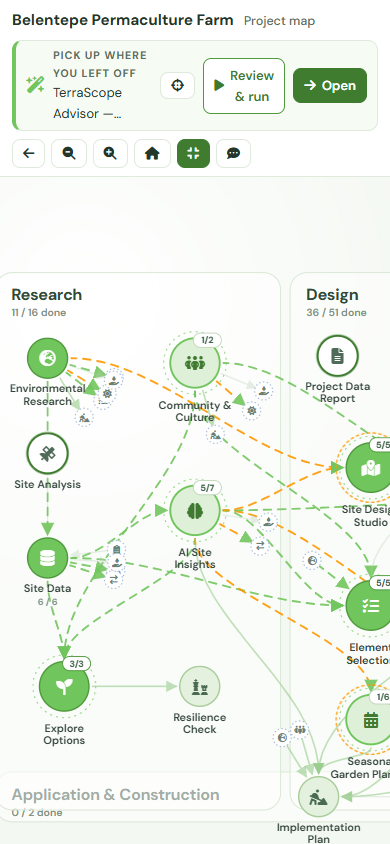
Open any project and you land on its map. It is not a progress bar and not a list of tools — it is the whole project drawn at once, with every step in its place whether you have done it or not, and lines between the steps showing where one step's output feeds the next. A step you finished six months ago still sits there holding its result and the date it ran; a step you have never touched is drawn in the same picture, dimmed, so you can click it and find out what it does before deciding whether you want it. Nothing is hidden behind a paywall in the sense of being invisible: the locked parts of the journey are on the map, in place, and clicking one tells you what would open it.
2. Reading the map
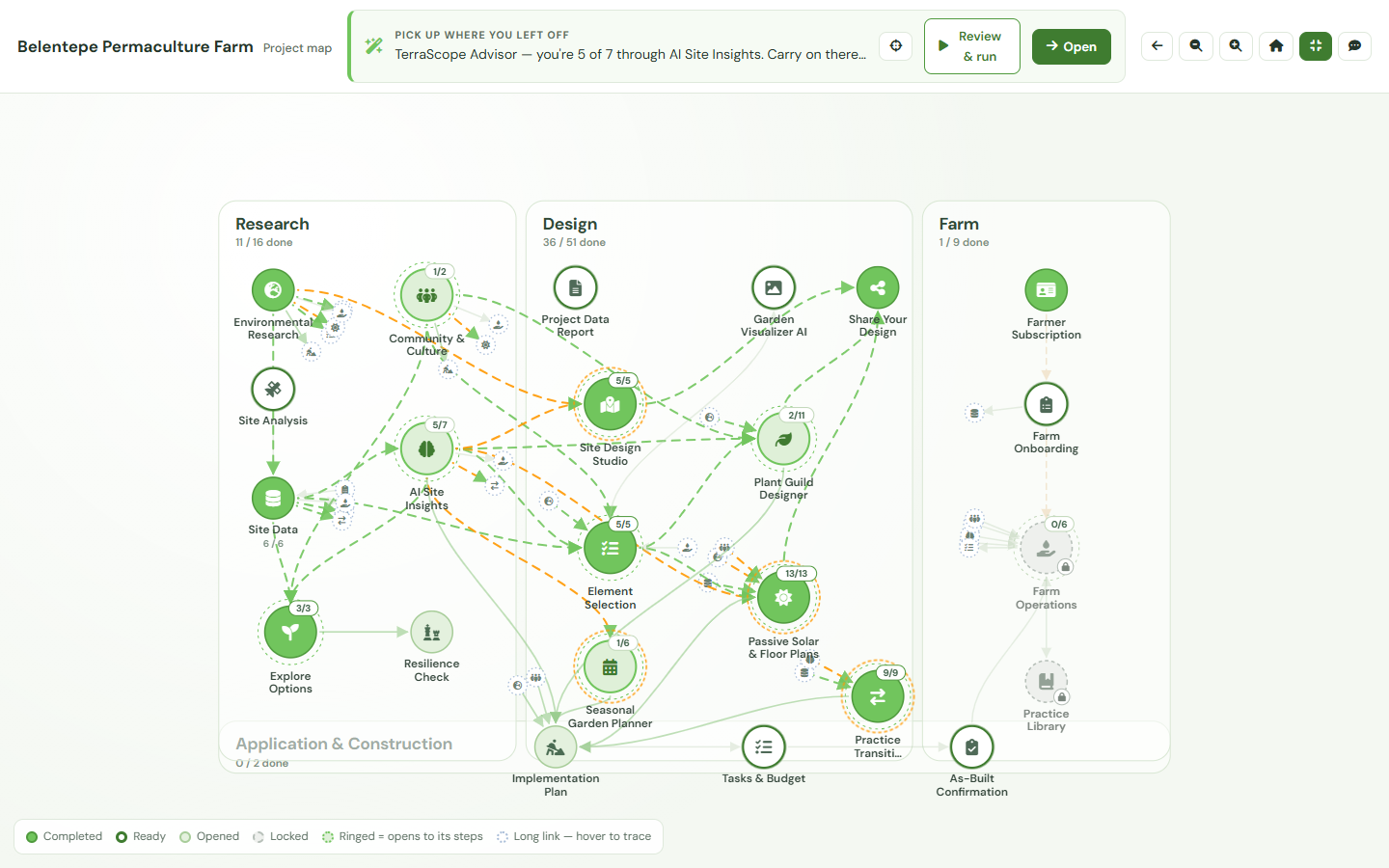
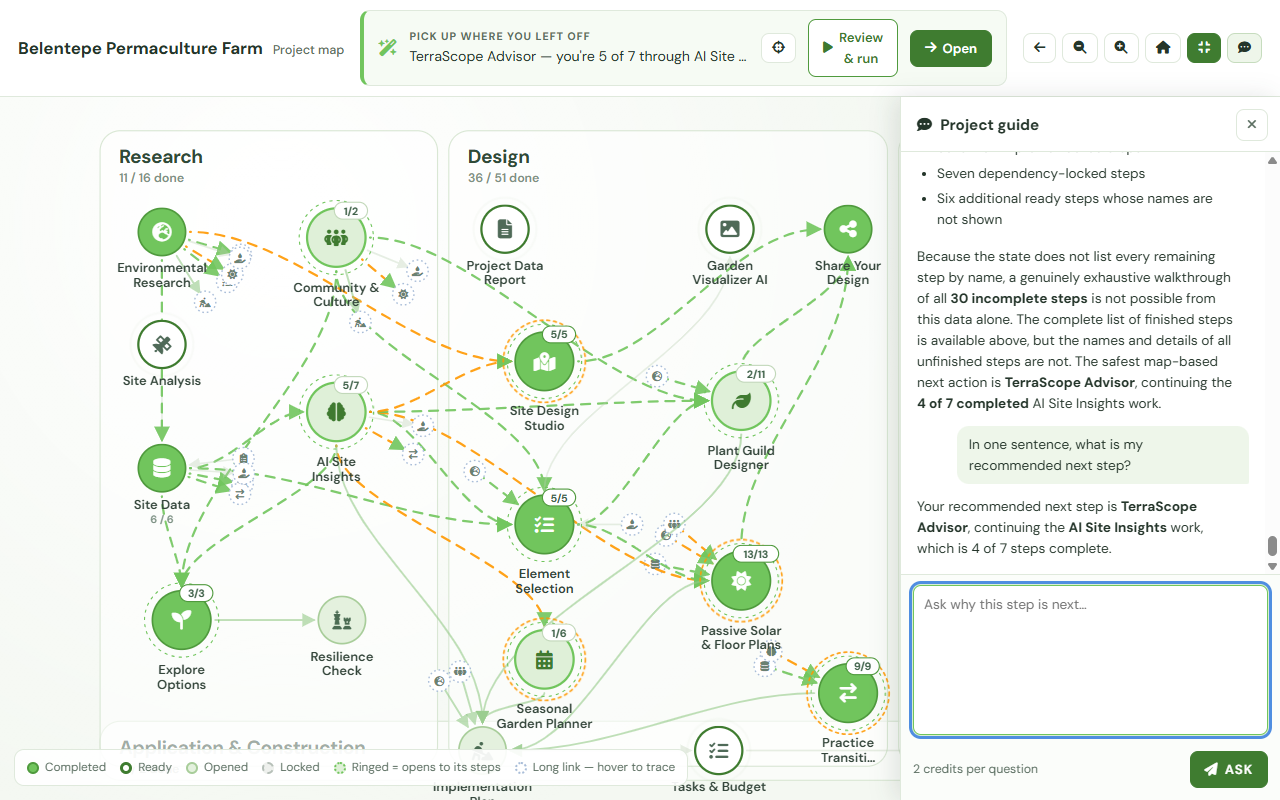
Four regions
The map is divided into four labelled regions, in the order the work actually happens:
- Research — site analysis: climate, soil, water, vegetation, community and the AI site insights built on them.
- Design — the site studio, element selection, the Plant Guild Designer, the passive-solar floor plan pipeline and the seasonal planner.
- Application & Construction — implementation plan, tasks and budget, as-built confirmation.
- Farm — the Farmer Hub steps: farm profile, crop planning, practices and records.
Each region shows its own fraction — how many of its steps are done — or reads locked with the number of steps waiting inside it.
Four node states
Every step is a disc, and its state is written on it. The same four words appear in the legend at the edge of the map:
| State | What it means |
|---|---|
| Completed | The step ran and its result is stored. Click it and the panel shows the output itself plus the date it completed — the map is where you go back to read old work, not just to start new work. |
| Ready | Nothing is in its way. Everything it needs has been done and you can start it now. |
| Opened | You have been into the tool but it has not produced a stored result yet. This is the state that tells you where you left off. |
| Locked | Either an earlier step has to happen first, or the stage has not been unlocked for this project. The panel always names which of the two it is. |
Ringed steps open to more steps
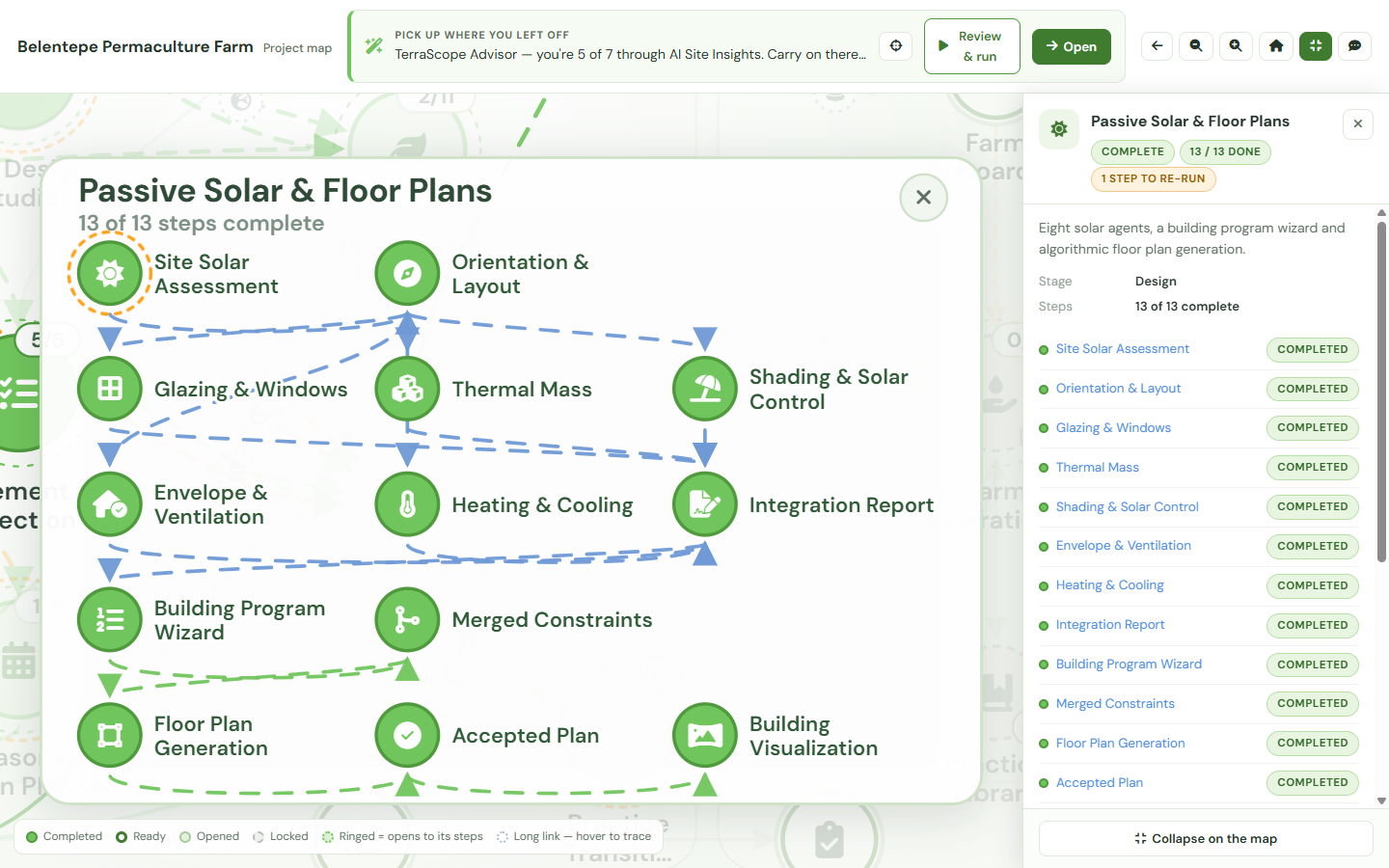
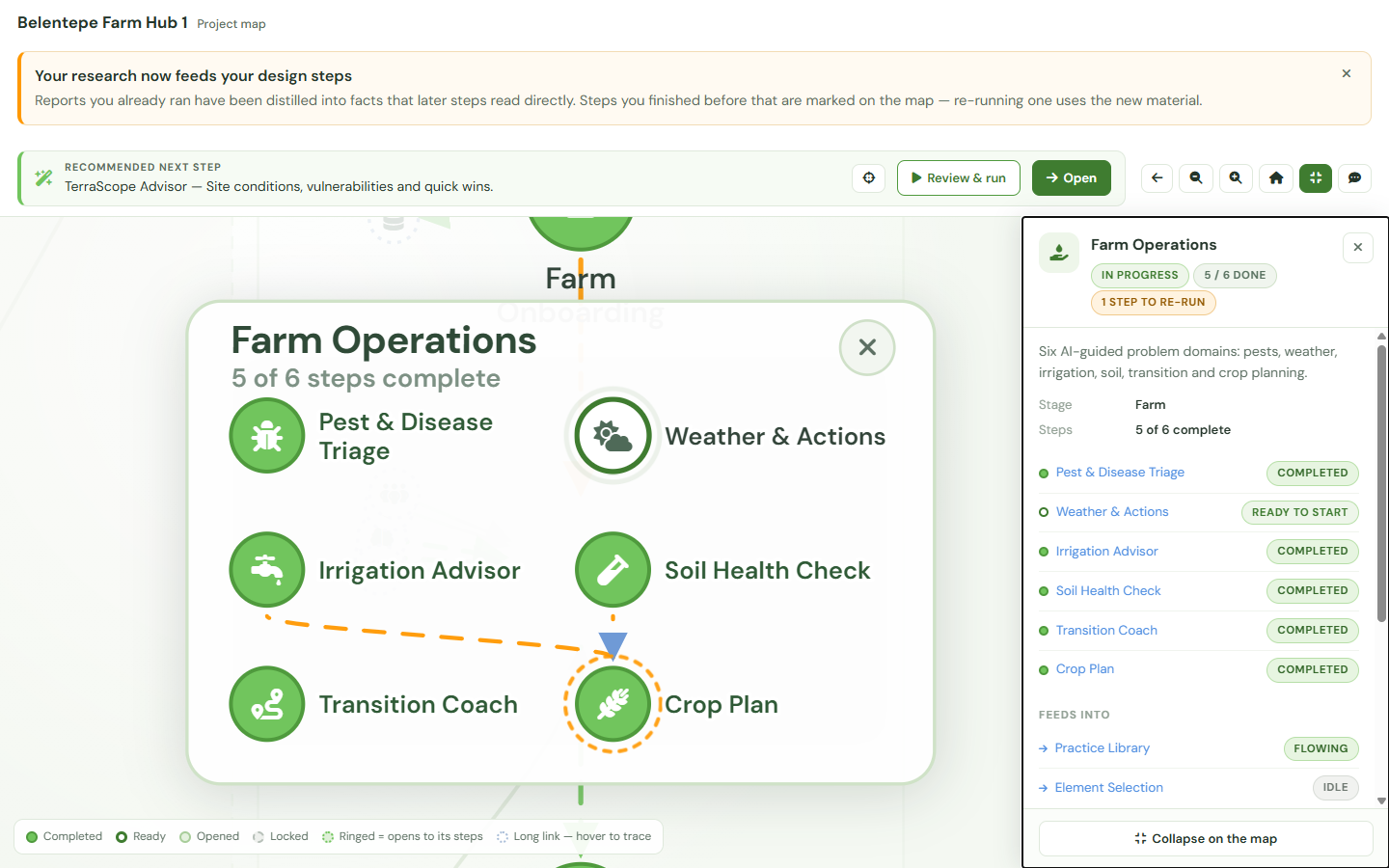
A disc drawn with a ring around it is a cluster: it stands for several sub-steps and opens to show them. Clusters expand in place — the map does not navigate anywhere, the neighbours simply dim and the children appear around the parent, so you never lose your position or your zoom. Only one cluster is open at a time; open another and the first closes.
Portal chips for long links
Some steps feed something on the far side of the map — research that grounds a farm decision, for instance. Drawn end to end those lines would be ruled straight through everything between them, so the map draws them as two short stubs instead, each tipped with a small chip carrying the icon of the other end. Nothing is hidden: hover or select either end and the whole line fades in, and the link is listed in the step's Connections either way.
3. Doing the next thing
The banner names one step, and says why
Above the map sits a single recommendation. It does not just name a step — it gives the reason it is being recommended, which is what lets you disagree with it. Sometimes that reason is momentum (this is what follows what you just finished), sometimes it is that a previous result has gone stale and is due to be re-run, and sometimes the next useful thing is not a step at all but an unlock, in which case the banner says so instead. When every mapped step is done the banner says that too.
Clicking a step
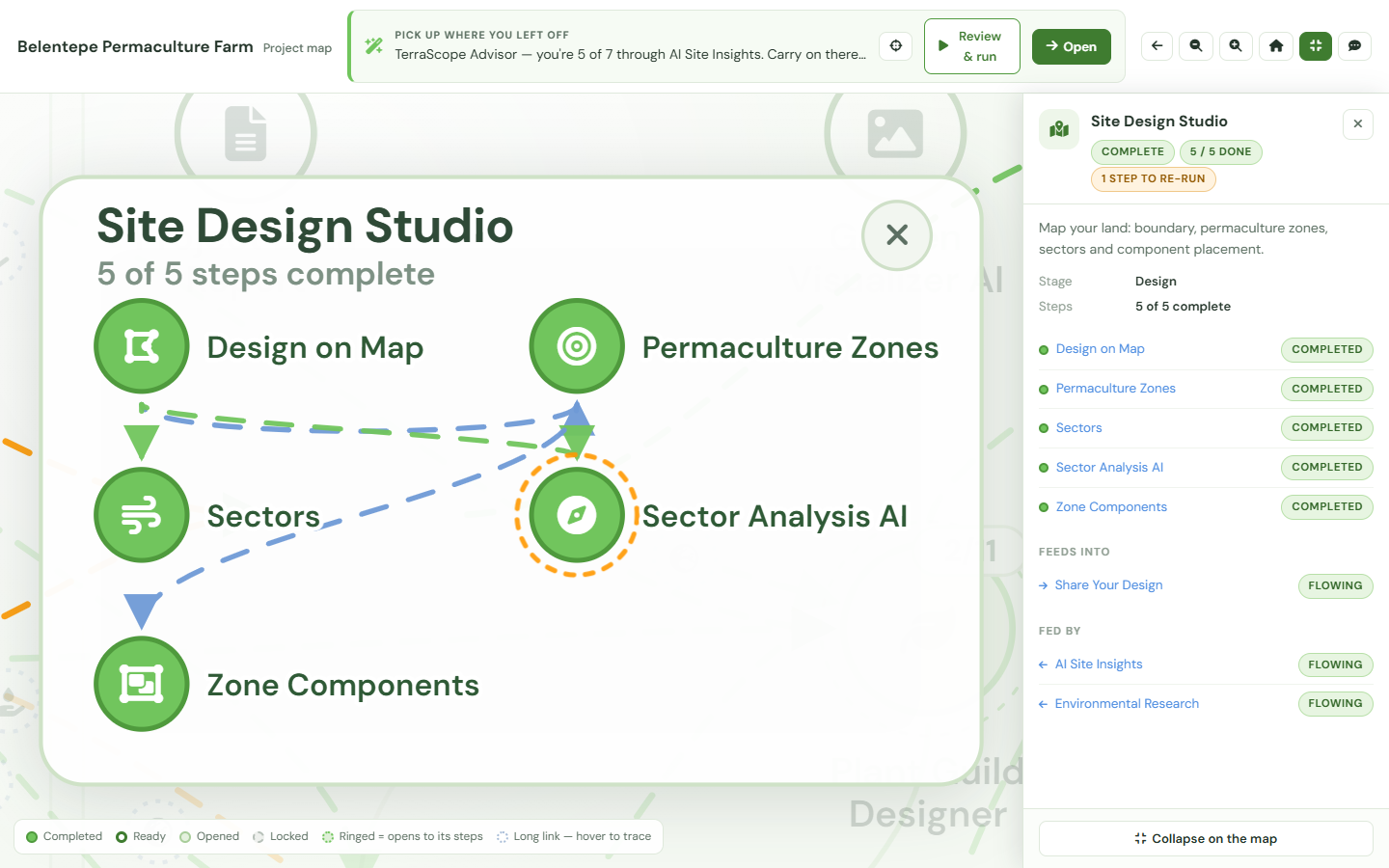
Click any disc and a panel opens on the right. For a completed step it carries the real output that step produced — the AI's own text, its fields, and the timestamp — not a summary of it. For a step you have not done it explains what the step is for and what it needs. At the foot of the panel is Open, a deep link straight into the tool for this project (steps that only report something say View instead).
Connections
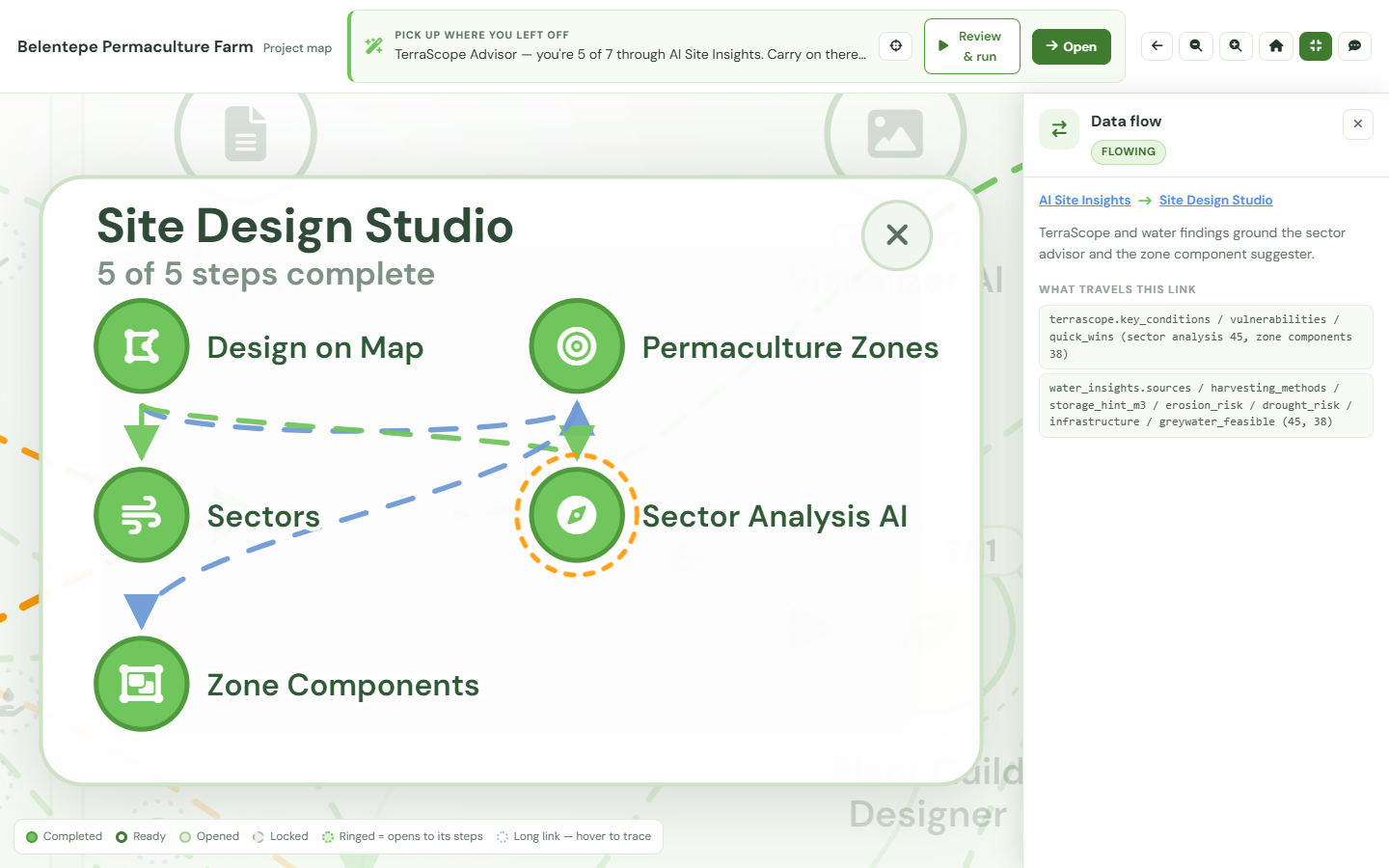
Below the output the panel splits the step's links in two: Feeds into and Fed by. Select a link and the map names what actually travels along it — which findings ground which recommendation. This is the part that makes the map usable as an audit trail: you can walk backwards from a design recommendation to the soil and climate research underneath it, and show someone else the chain.
Not using a mouse?
The first thing on the page is a skip link — Skip the map — read a text summary — which opens the panel on a written summary of the whole project. Every step is a keyboard-reachable button, and the Connections lists are the keyboard route between linked steps.
4. Controls
The controls sit in the bar above the map. Their names here are the names the buttons themselves carry:
- Back to My Projects — leaves the map for your project list.
- Zoom out and Zoom in — the − and + buttons.
- Reset the view — returns the map to the framing it opened with, which is the quickest way out of being lost.
- Focus mode — hide the menu and fill the screen. The site navigation goes away and the map takes the whole viewport. Your choice is remembered, so a map you left in Focus mode opens in Focus mode.
- Ask the project guide — opens a chat drawer about this project.
The project guide
The guide is opt-in and never speaks first. Open the drawer and ask it why a step is recommended, what a locked step would give you, or what a stored result means. It answers about the project in front of you, and the price is shown next to the box before you send: 2 credits per question. If you never open the drawer it never costs anything.
5. Unlocking Design and Farm from the map
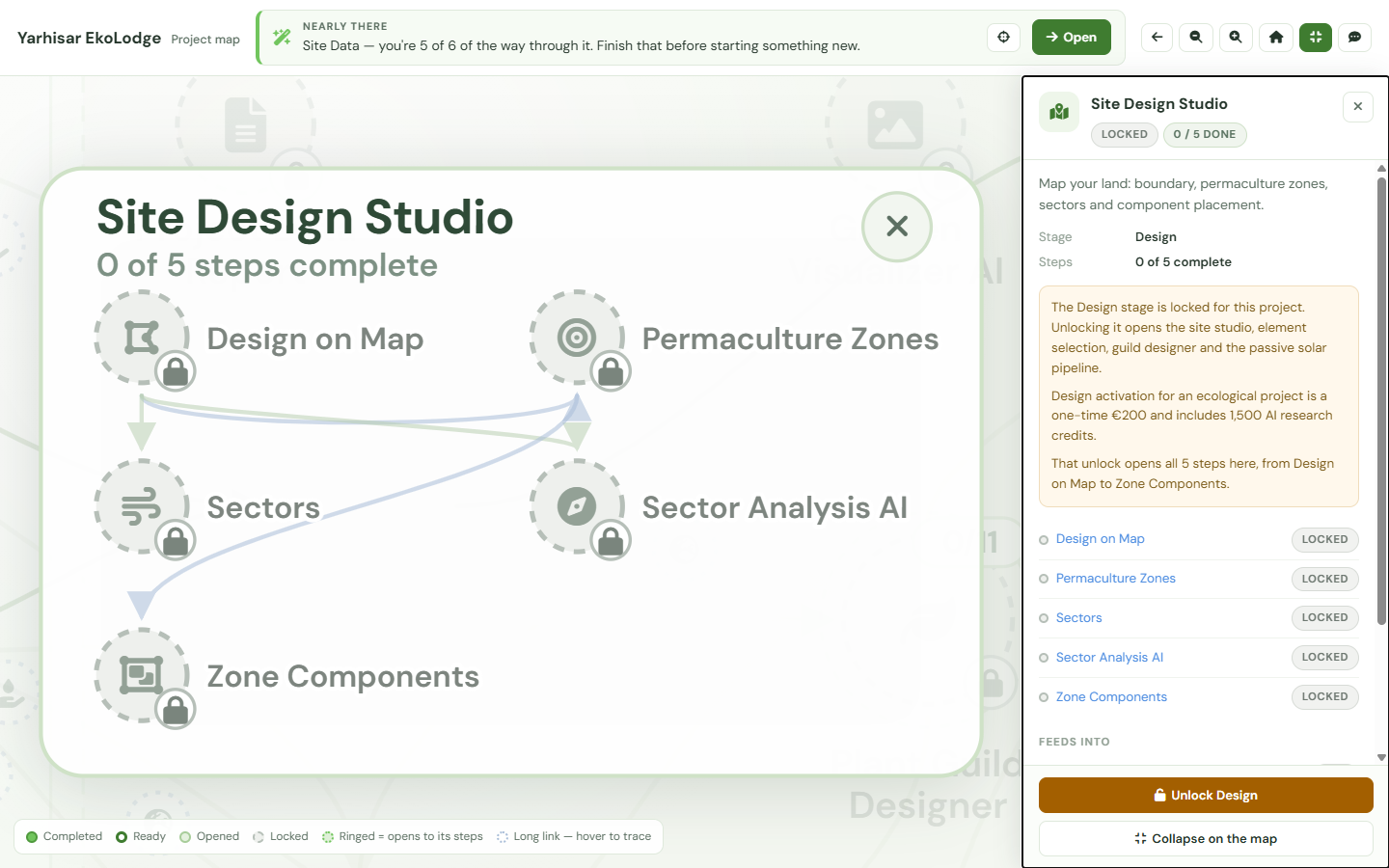
A new project starts with Research open. Design, Application & Construction and Farm are drawn in full but locked — you can click every step in them and read what it does. When a step is locked because its stage has not been bought, the panel leads with the unlock rather than with the tool, and the price it shows is the app's own, rendered for this project.
Design
Unlocking Design for a project opens the site studio, element selection, the guild designer and the passive-solar pipeline. It is a one-time activation for that project, not a subscription: €75 for a garden project (including 900 AI research credits) or €200 for an ecological project (including 1,500 credits). If you have not confirmed yourself as a designer yet, that is a separate, free, one-time step and the unlock page walks you through both.
Farm
The Farm steps run on a Farmer Hub for this project — €9.90 per month or €99 per year, with 150 farm credits per cycle and a 30-day free trial on your first hub. A hub belongs to one project, so a second farm is a second hub; the trial is once per account. After the hub is active the Farm steps still need a farm profile before the day-to-day tools open.
Work you did before a lock
If Design work was done on a project and the stage is not currently open — a lapsed farm hub is the usual case — those steps stay Completed and keep their stored output. The panel names the closed gate and offers the unlock; it does not pretend the work was never done, and it does not offer you a second button that only leads to the same checkout.
6. Your first visit
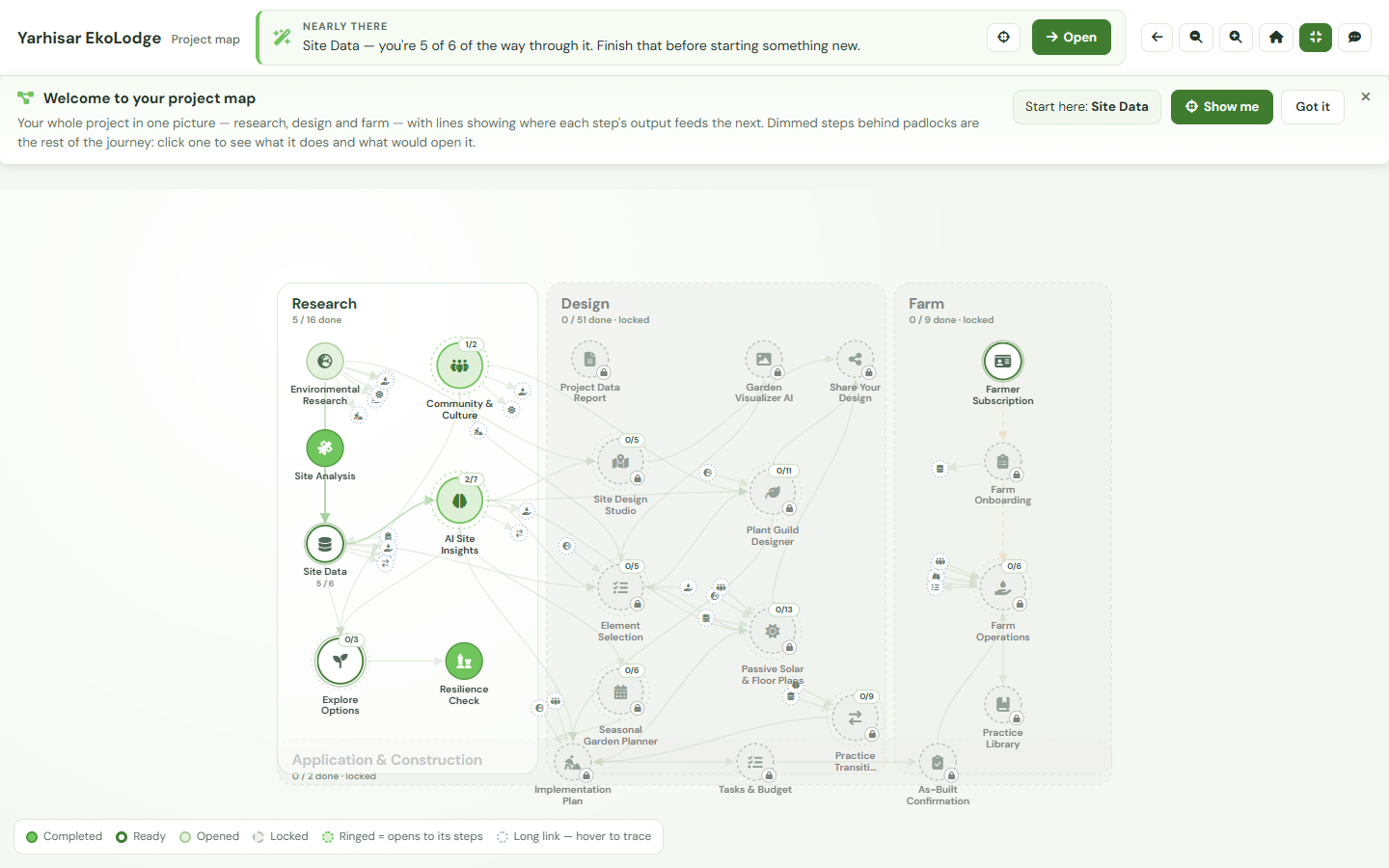
The first time you open a project map on a browser, a strip appears between the toolbar and the map: Welcome to your project map. It says in three sentences what the picture is, why part of it is padlocked, and where to start — and it names your first step with a Show me button that points the map at it. Got it dismisses it.
It is a strip, not an overlay, so it never covers the map; dismissing it gives the space back. It shows once per browser, and only to projects that have not yet unlocked Design or a Farmer Hub — if you have bought either, the map does not introduce itself. On a phone the strip stands in for the recommendation banner, so the two do not repeat each other on a small screen.
7. Where to go next
Research agents
What each Research step on the map actually does, and what it needs from you.
Design tools & unlocking Design
The tools behind the Design region, and the activation in full.
The Farmer Hub
The Farm steps in use, from farm profile to crop planning.